
If you want a WordPress site to load in under 2 seconds, you should optimize in this order: hosting and server caching, full-page and object caching, front-end assets (CSS, JavaScript, fonts), and finally images.
Before You Start (5 Minutes)
- Test one important URL (homepage or key landing page) and note load time, page size, total requests, and Core Web Vitals.
- Disable testing noise: log out of WordPress, use Incognito mode, and test the same URL consistently.
- Take a full site backup before enabling minify or combine features, as some themes or plugins may break.
Step 1: Fix the Server Layer (Hosting)
SiteGround Hosting (Recommended)
SiteGround’s Speed Optimizer supports NGINX Dynamic Caching (full-page cache) and Memcached (object cache), which are the most effective caching layers on their platform.
Go to WordPress → SG Optimizer → Caching and enable Dynamic Caching and Memcached. Also ensure Memcached is enabled in SiteGround Tools.
cPanel / WHM with LiteSpeed
If your server uses LiteSpeed Web Server and you have WHM access,
enable LiteSpeed Cache via:
WHM → Plugins → LiteSpeed Web Server Plugin.
Install the LiteSpeed Cache plugin in WordPress. LiteSpeed also supports Brotli compression, which improves performance on modern browsers.
Step 2: Configure Caching Correctly (Avoid Double Caching)
On SiteGround, Dynamic Cache and Memcached should be managed via the Speed Optimizer plugin.
If you are using WP Rocket with SiteGround:
- Dynamic Caching: ON
- Memcached: ON
- File-Based Caching: OFF
- Automatic Cache Purge: ON
Step 3: Optimize Front-End Assets
Enable CSS and JavaScript minification, defer or delay JS execution, and optimize fonts using your performance plugin.
Test carefully after each change. If sliders, menus, or page builders break, roll back one option at a time.
Step 4: Optimize Images (Biggest Easy Win)
Compress large images and serve next-gen formats like WebP. Images often account for the largest portion of page weight.
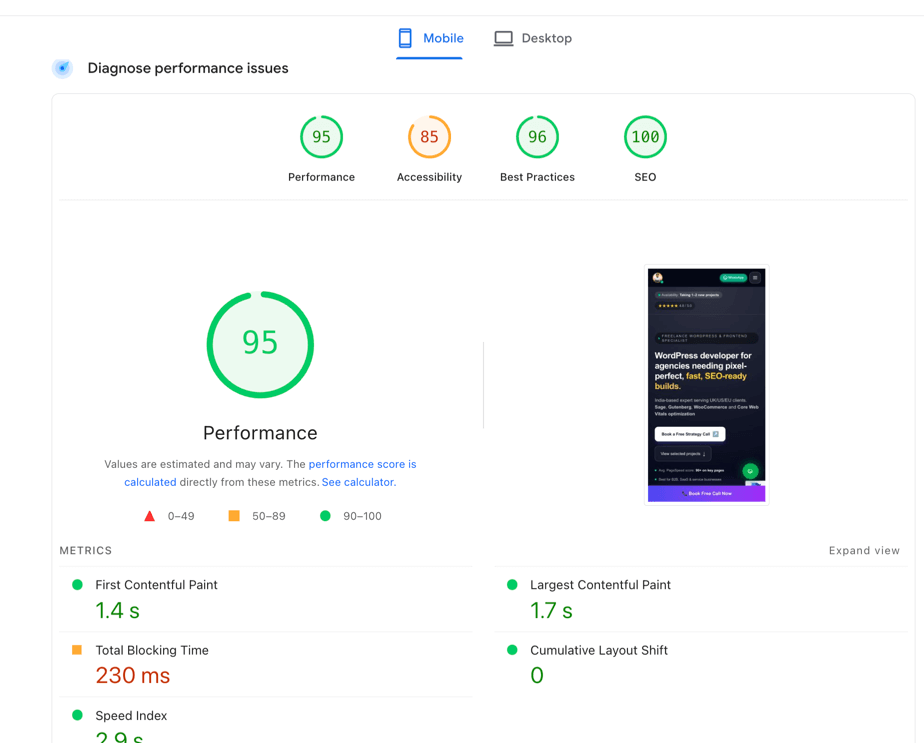
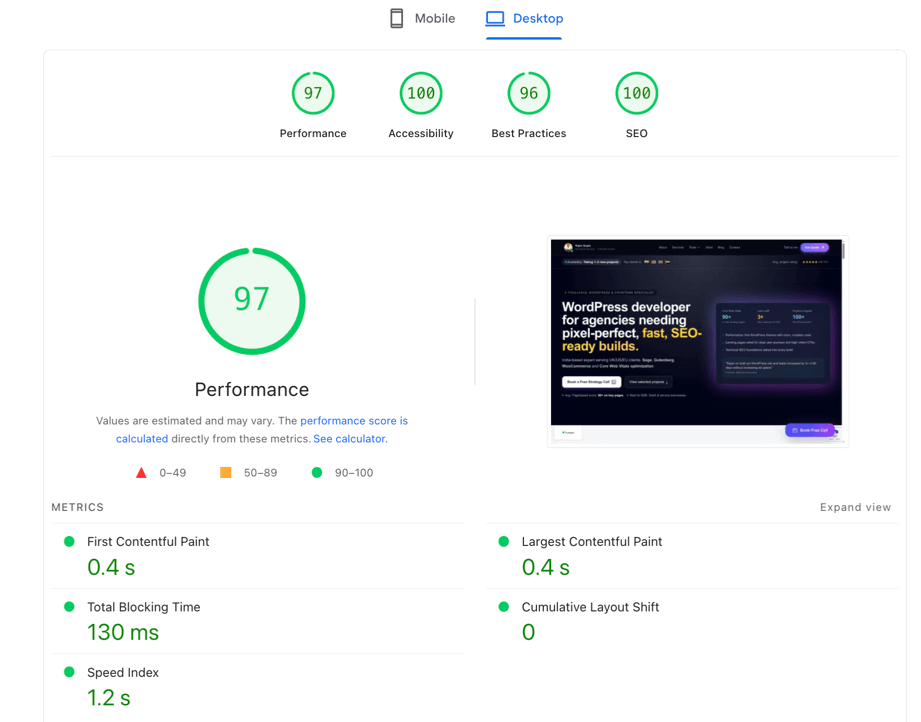
After optimization, retest the same URL to confirm faster load times and reduced data transfer.
Step 5: Verify Results and Lock It In
Retest performance after each optimization step to identify which change delivered the biggest improvement.
Enable automatic cache purge so content updates clear cached pages correctly.
WordPress Speed Optimization Implementation Checklist
Use this checklist as a repeatable SOP for client projects.
A) SiteGround Hosting Checklist
- Confirm the hosting plan supports Dynamic Cache and Memcached.
- Install and activate the Speed Optimizer plugin.
- Enable Dynamic Caching and Memcached.
- If using WP Rocket, disable file-based caching and keep server caching enabled.
- Enable front-end and media optimizations one by one, testing key pages after each change.
B) LiteSpeed Hosting Checklist (Common in India)
- Confirm LiteSpeed Web Server is active.
- Enable LiteSpeed Cache via WHM.
- Install the LiteSpeed Cache plugin in WordPress.
- Confirm Brotli or GZIP compression is enabled.
- Optimize images and front-end assets, then retest.
Code-Level WordPress Optimization
Code-level optimization focuses on
(1) reducing unnecessary front-end assets,
(2) improving cacheability,
and (3) avoiding expensive database operations.
Safe Drop-In Code Snippets (Best ROI)
Add these via a small custom plugin or the Code Snippets plugin (not directly in a parent theme’s functions.php).
Disable Emojis
add_action('init', function () {
  remove_action('wp_head', 'print_emoji_detection_script', 7);
  remove_action('admin_print_scripts', 'print_emoji_detection_script');
  remove_action('wp_print_styles', 'print_emoji_styles');
  remove_action('admin_print_styles', 'print_emoji_styles');
  remove_filter('the_content_feed', 'wp_staticize_emoji');
  remove_filter('comment_text_rss', 'wp_staticize_emoji');
  remove_filter('wp_mail', 'wp_staticize_emoji_for_email');
  add_filter('emoji_svg_url', '__return_false');
});
Remove ?ver Query Strings from CSS/JS
function remove_cssjs_ver($src) {
  if (strpos($src, '?ver=')) {
    $src = remove_query_arg('ver', $src);
  }
  return $src;
}
add_filter('style_loader_src', 'remove_cssjs_ver', 10);
add_filter('script_loader_src', 'remove_cssjs_ver', 10);
Reduce Heartbeat API Frequency
add_filter('heartbeat_settings', function ($settings) {
  $settings['interval'] = 60;
  return $settings;
});
Increase WordPress Memory Limit
define('WP_MEMORY_LIMIT', '256M');
define('WP_MAX_MEMORY_LIMIT', '512M');
Important Notes
- Clear caches and retest after each change.
- Removing query strings can affect cache busting. Keep only if your CDN or cache updates assets reliably.
More WordPress Optimization Guides
- How to Load WordPress Blog Posts Faster Using Post IDs Only
- Fix WordPress Core Web Vitals in 2026: Get LCP Under 2.5s (Step-by-Step)
- WordPress Table of Contents Without Plugin (Step-by-Step Guide)
- Boost Campaign Tracking with Dynamic UTM Parameters in WordPress
Looking for more WordPress performance and code-level optimization guides?

Rajan Gupta
FullStack Web DeveloperRajan Gupta is a passionate web developer and digital creator who loves sharing insights on WordPress, modern web design, and performance optimization. When not coding, they enjoy exploring the latest tech trends and helping others build stunning, high-performing websites.