
How to Reorder Custom Post Types in WordPress Without a Plugin (Easy & Clean Code)
Reorder Custom Post Types WordPress style with this clean, plugin-free solution. WordPress is a powerful CMS, but when it comes to customising the admin experience—like changing the order of your custom post types—there’s no built-in drag-and-drop feature. Most tutorials recommend using a plugin, but what if you want to keep things lightweight and clean?
In this tutorial, we’ll show you how to reorder custom post types in WordPress without a plugin, using just a few lines of code and jQuery UI for a user-friendly drag-and-drop experience.
Whether you’re working with a team, service, or any custom post type (CPT), this solution will make your admin interface more efficient and intuitive.
Why Reorder Custom Posts?
Here are a few reasons why you might want to customize the order of your CPTs:
- Display team members in a specific hierarchy
- Highlight featured services at the top
- Organize testimonials, portfolios, or case studies
- Improve client usability in the WordPress admin area
By default, WordPress doesn’t allow custom ordering without manipulating post dates or using a plugin. But there’s a better way—using the menu_order parameter and a bit of code.
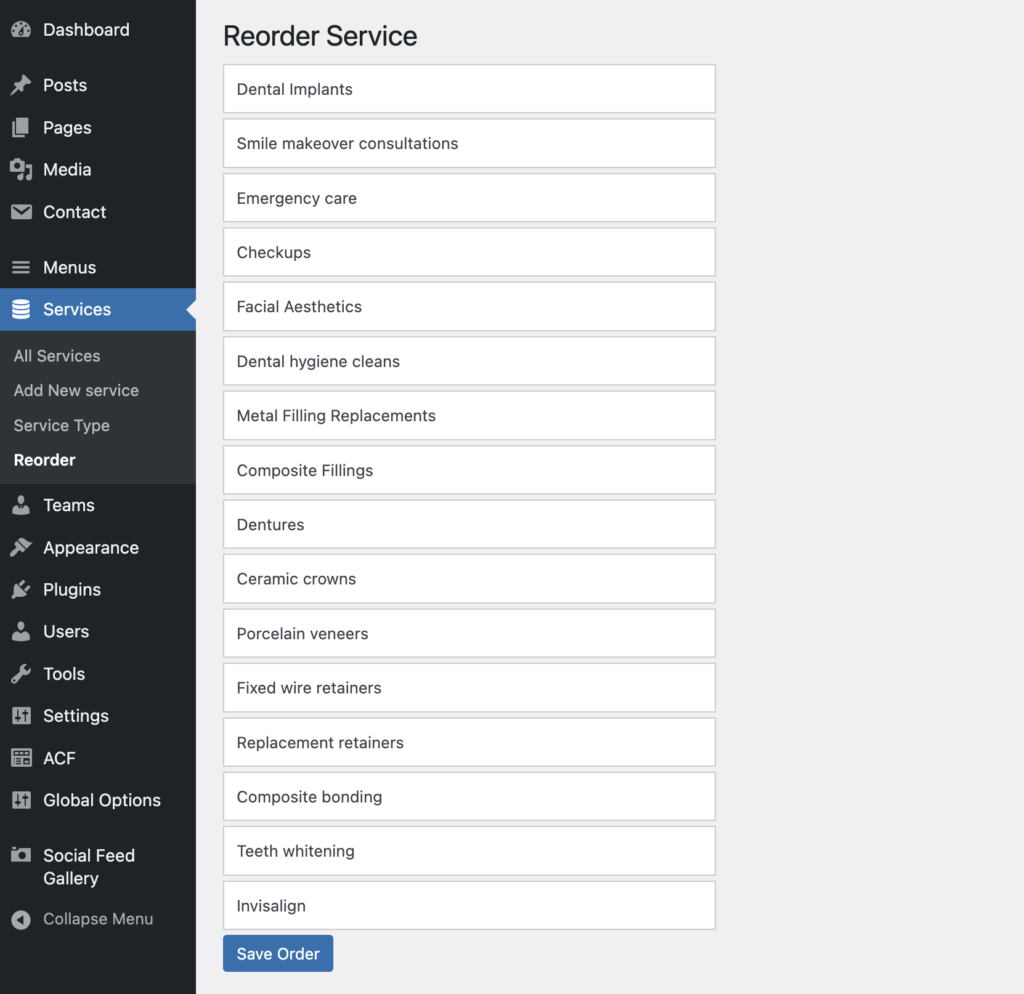
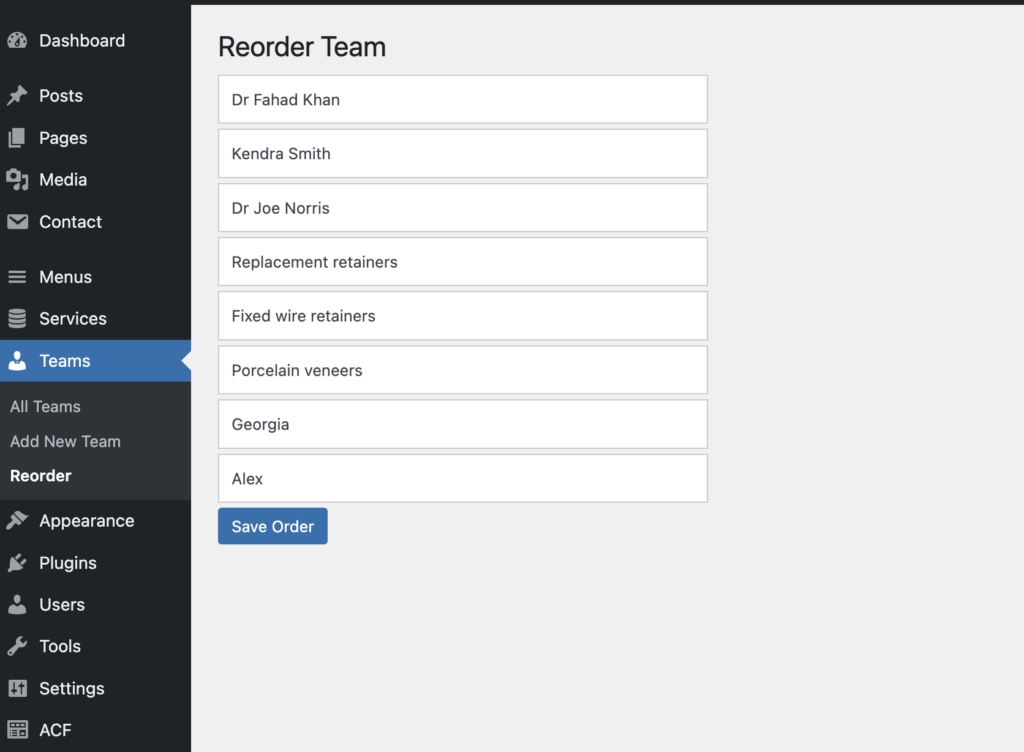
What You’ll Be Building
- A new submenu under your CPT menu (e.g., “Reorder”)
- A drag-and-drop UI using jQuery UI’s
sortable() - An AJAX handler to save the new order to the database
Step-by-Step Implementation
1. Add a Reorder Submenu for Your Custom Post Types
Add this to your theme’s functions.php or a custom functionality plugin:
add_action('admin_menu', function () {
    $cpts = ['service', 'team']; // Add your CPT slugs here
    foreach ($cpts as $cpt) {
        add_submenu_page(
            'edit.php?post_type=' . $cpt,
            'Reorder ' . ucfirst($cpt),
            'Reorder',
            'edit_posts',
            'reorder-' . $cpt,
            function () use ($cpt) {
                render_reorder_page_for_cpt($cpt);
            }
        );
    }
});
This adds a “Reorder” menu item under each CPT’s admin section.
Render the Reorder Page with Sortable List
function render_reorder_page_for_cpt($cpt) {
    $items = get_posts([
        'post_type' => $cpt,
        'posts_per_page' => -1,
        'orderby' => 'menu_order',
        'order' => 'ASC',
    ]);
    ?>
    <div class="wrap">
        <h1>Reorder <?php echo ucfirst($cpt); ?></h1>
        <ul id="sortable-<?php echo esc_attr($cpt); ?>" class="sortable-list">
            <?php foreach ($items as $item): ?>
                <li id="post-<?php echo $item->ID; ?>"><?php echo esc_html($item->post_title); ?></li>
            <?php endforeach; ?>
        </ul>
        <button data-cpt="<?php echo esc_attr($cpt); ?>" class="save-order button button-primary">Save Order</button>
    </div>
    <?php
}
3. Include jQuery UI and Handle the Drag & Save
add_action('admin_footer', function () {
    $screen = get_current_screen();
    if (!str_contains($screen->id, 'reorder')) return;
    ?>
    <style>
        .sortable-list { list-style: none; margin: 0; padding: 0; width: 400px; }
        .sortable-list li { padding: 10px; margin: 4px 0; background: #fff; border: 1px solid #ccc; cursor: move; }
    </style>
    <script src="https://code.jquery.com/ui/1.12.1/jquery-ui.min.js"></script>
    <script>
      jQuery(function($) {
          $('.sortable-list').sortable();
          $('.save-order').click(function() {
              const cpt = $(this).data('cpt');
              const order = $('#sortable-' + cpt).sortable('toArray');
              const ids = order.map(id => id.replace('post-', ''));

              $.post(ajaxurl, {
                  action: 'save_custom_order',
                  order: ids,
                  cpt: cpt
              }, function(response) {
                  $('.custom-admin-message').remove();
                  const msg = $('<div class="notice custom-admin-message is-dismissible"></div>')
                      .addClass(response.success ? 'notice-success' : 'notice-error')
                      .append('<p>' + (response.success ? 'Order saved successfully.' : 'Error saving order.') + '</p>');
                  $('.wrap h1').after(msg);
                  setTimeout(() => msg.fadeOut(300, () => msg.remove()), 3000);
              });
          });
      });
    </script>
    <?php
});
Handle the AJAX Request to Save Order
add_action('wp_ajax_save_custom_order', function () {
    if (!current_user_can('edit_posts')) {
        wp_send_json_error();
    }
    $order = $_POST['order'] ?? [];
    if (is_array($order)) {
        foreach ($order as $pos => $post_id) {
            wp_update_post([
                'ID' => intval($post_id),
                'menu_order' => intval($pos),
            ]);
        }
        wp_send_json_success();
    }
    wp_send_json_error();
});
Final Notes
- This approach works only if your custom post type supports
menu_order. Make sure you register it with'hierarchical' => trueor addpage-attributesto thesupportsarray.
‘supports’ => [‘title’, ‘editor’, ‘page-attributes’],
Why This Is Better Than Using a Plugin
- No plugin bloat – pure code means faster performance
- Fully customizable – tailor it to your project’s needs
- No dependency risks – you control everything, contact us
- People love this integration.

Rajan Gupta
FullStack Web DeveloperRajan Gupta is a passionate web developer and digital creator who loves sharing insights on WordPress, modern web design, and performance optimization. When not coding, they enjoy exploring the latest tech trends and helping others build stunning, high-performing websites.